Category: switching · Difficulty: beginner · Lab ID: PTL-0009 · Document: reviewed · Simulator: tested pass
In a flat Layer 2 network, all connected devices share a single broadcast domain. Every ARP request, DHCP discovery, and broadcast frame is flooded out every switchport, degrading network performance and allowing any connected user to intercept unauthorized traffic. Virtual Local Area Networks (VLANs) solve this by logically segmenting a single physical switch into multiple distinct broadcast domains. Devices in different VLANs cannot communicate at Layer 2, even when plugged into adjacent physical ports on the same switch. This lab walks you through creating VLANs, assigning access ports, and verifying traffic isolation.
Learning Objectives#
- Explain the role of VLANs in containing broadcast traffic and enforcing departmental security boundaries.
- Create, name, and delete VLANs in Cisco IOS Global Configuration mode.
- Assign static switch access ports to specific VLANs.
- Use interface range syntax (
interface range) to configure multiple ports simultaneously. - Verify VLAN port memberships using
show vlan briefandshow interfaces switchport. - Demonstrate that hosts in the same VLAN communicate directly, while cross-VLAN communication is blocked at Layer 2.
Prerequisites#
- Basic familiarity with Cisco IOS command modes.
- Understanding of IPv4 addressing and local subnet boundaries.
- Cisco Packet Tracer 8.0 or newer.
Topology#
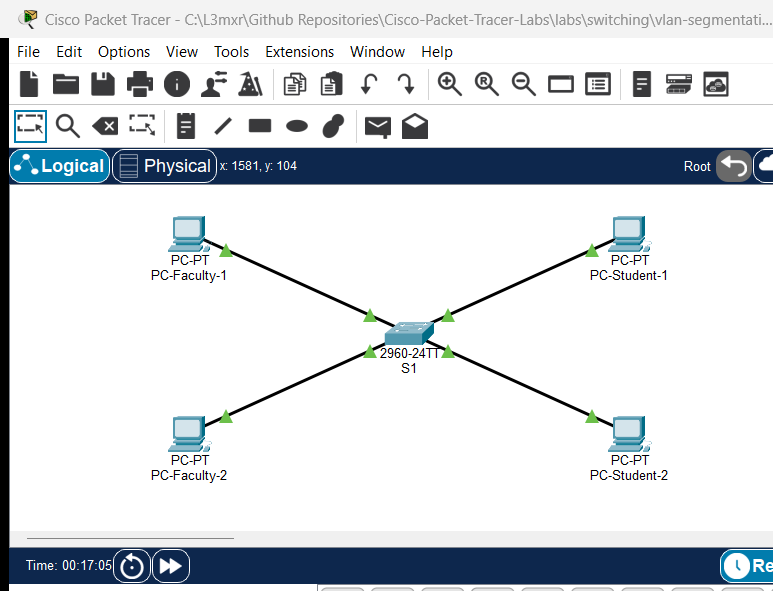
The topology features a single Cisco Catalyst 2960 switch with four workstations divided equally between two departmental VLANs:
[PC-Faculty-1] ──Fa0 ───── Fa0/1──┐
(192.168.10.11/24, VLAN 10)       │
                                  ├── [Switch S1]
[PC-Faculty-2] ──Fa0 ───── Fa0/2──┤
(192.168.10.12/24, VLAN 10)       │
                                  │
[PC-Student-1] ──Fa0 ───── Fa0/11─┤
(192.168.20.11/24, VLAN 20)       │
                                  │
[PC-Student-2] ──Fa0 ───── Fa0/12─┘
(192.168.20.12/24, VLAN 20)
| Device Name | Model | Interface | Connected Device | Neighbor Interface | Assigned VLAN |
|---|---|---|---|---|---|
| PC-Faculty-1 | PC-PT | FastEthernet0 | Switch S1 | FastEthernet0/1 | VLAN 10 (Faculty) |
| PC-Faculty-2 | PC-PT | FastEthernet0 | Switch S1 | FastEthernet0/2 | VLAN 10 (Faculty) |
| PC-Student-1 | PC-PT | FastEthernet0 | Switch S1 | FastEthernet0/11 | VLAN 20 (Students) |
| PC-Student-2 | PC-PT | FastEthernet0 | Switch S1 | FastEthernet0/12 | VLAN 20 (Students) |
Addressing Table#
| Device | Interface | IPv4 Address | Subnet Mask | VLAN ID | Network Description |
|---|---|---|---|---|---|
| S1 | VLAN 99 (SVI) | 192.168.99.2 |
255.255.255.0 |
VLAN 99 | Management Network |
| PC-Faculty-1 | FastEthernet0 | 192.168.10.11 |
255.255.255.0 |
VLAN 10 | Faculty / Staff LAN |
| PC-Faculty-2 | FastEthernet0 | 192.168.10.12 |
255.255.255.0 |
VLAN 10 | Faculty / Staff LAN |
| PC-Student-1 | FastEthernet0 | 192.168.20.11 |
255.255.255.0 |
VLAN 20 | Student Computer Lab LAN |
| PC-Student-2 | FastEthernet0 | 192.168.20.12 |
255.255.255.0 |
VLAN 20 | Student Computer Lab LAN |
Lab Tasks#
- Connect the four PCs to the specified ports on Switch S1 using straight-through cables.
- Configure IP addresses and subnet masks on each PC according to the Addressing Table.
- Prior to creating VLANs, test ping connectivity between all PCs to observe default VLAN 1 behavior.
- On Switch S1, create
VLAN 10(namedFaculty),VLAN 20(namedStudents), andVLAN 99(namedManagement). - Assign ports
Fa0/1 - 10as static access ports inVLAN 10. - Assign ports
Fa0/11 - 20as static access ports inVLAN 20. - Verify VLAN port memberships using
show vlan brief. - Verify Layer 2 isolation: confirm that PC-Faculty-1 can ping PC-Faculty-2, but cannot ping PC-Student-1.
Configuration Walkthrough#
1. Switch S1 Configuration#
Connect to Switch S1 CLI:
Switch> enable
Switch# configure terminal
Switch(config)# hostname S1

! Create and Name Departmental VLANs
S1(config)# vlan 10
S1(config-vlan)# name Faculty
S1(config-vlan)# exit

S1(config)# vlan 20
S1(config-vlan)# name Students
S1(config-vlan)# exit

S1(config)# vlan 99
S1(config-vlan)# name Management
S1(config-vlan)# exit

! Assign Ports Fa0/1 - 10 to VLAN 10 (Faculty)
S1(config)# interface range FastEthernet0/1 - 10
S1(config-if-range)# description Faculty Access Ports
S1(config-if-range)# switchport mode access
S1(config-if-range)# switchport access vlan 10
S1(config-if-range)# no shutdown
S1(config-if-range)# exit

! Assign Ports Fa0/11 - 20 to VLAN 20 (Students)
S1(config)# interface range FastEthernet0/11 - 20
S1(config-if-range)# description Student Access Ports
S1(config-if-range)# switchport mode access
S1(config-if-range)# switchport access vlan 20
S1(config-if-range)# no shutdown
S1(config-if-range)# exit

! Management SVI on Isolated Management VLAN 99
S1(config)# interface vlan 99
S1(config-if)# ip address 192.168.99.2 255.255.255.0
S1(config-if)# no shutdown
S1(config-if)# exit

S1(config)# end
S1# copy running-config startup-config
Verification#
1. Inspect Active VLAN Database#
S1# show vlan brief
(Sample expected output — illustrative):
VLAN Name                             Status    Ports
---- -------------------------------- --------- -------------------------------
1    default                          active    Fa0/21, Fa0/22, Fa0/23, Fa0/24,
                                                Gi0/1, Gi0/2
10   Faculty                          active    Fa0/1, Fa0/2, Fa0/3, Fa0/4,
                                                Fa0/5, Fa0/6, Fa0/7, Fa0/8,
                                                Fa0/9, Fa0/10
20   Students                         active    Fa0/11, Fa0/12, Fa0/13, Fa0/14,
                                                Fa0/15, Fa0/16, Fa0/17, Fa0/18,
                                                Fa0/19, Fa0/20
99   Management                       active
Verify that ports Fa0/1 and Fa0/2 are listed under VLAN 10, and ports Fa0/11 and Fa0/12 are listed under VLAN 20.
2. Verify Port Administrative State#
S1# show interfaces FastEthernet0/1 switchport
Confirm that:
Administrative Mode: static accessOperational Mode: static accessAccess Mode VLAN: 10 (Faculty)
3. Layer 2 Traffic Isolation Testing#
- Intra-VLAN Test (Within VLAN 10):
From PC-Faculty-1, ping PC-Faculty-2:
Expected Result: 4/4 replies received (
C:\> ping 192.168.10.12Reply from 192.168.10.12: bytes=32 time<1ms TTL=128). - Inter-VLAN Test (VLAN 10 to VLAN 20):
From PC-Faculty-1, attempt to ping PC-Student-1:
Expected Result:
C:\> ping 192.168.20.11Request timed out.(0/4 packets received). The switch maintains independent MAC address tables per VLAN. Because no Layer 3 routing device connects the VLANs, frames originating in VLAN 10 cannot cross into VLAN 20.
Troubleshooting#
- Problem: PC-Faculty-1 cannot ping PC-Faculty-2 even though both are configured with
192.168.10.xaddresses.- Check 1: Run
show vlan briefon S1. Ensure both Fa0/1 and Fa0/2 are actively assigned to10 Faculty. If one is still in VLAN 1, they cannot communicate. - Check 2: Check IP configurations on the PCs to ensure they share the identical subnet mask (
255.255.255.0).
- Check 1: Run
- Problem: When creating a VLAN, the prompt displays
% Access VLAN does not exist. Creating vlan....- Explanation: If you assign a switchport to a VLAN before explicitly creating the VLAN (
switchport access vlan 50), Cisco IOS automatically creates the VLAN for you, but leaves it with a default name (e.g.VLAN0050). It is considered best practice to explicitly create and name VLANs first.
- Explanation: If you assign a switchport to a VLAN before explicitly creating the VLAN (
- Problem: A deleted VLAN leaves ports orphaned.
- Check: If you delete a VLAN (
no vlan 10) while physical ports are still assigned to it, those ports become inactive and cannot communicate until reassigned to an active VLAN.
- Check: If you delete a VLAN (
Key Takeaways#
- VLAN Broadcast Domain Isolation: Virtual Local Area Networks (VLANs) partition a physical switch into multiple isolated Layer 2 broadcast domains, ensuring broadcast frames, ARP requests, and unknown unicast flooding remain confined to their originating VLAN.
- VLAN Access Port Membership: A switch access port configured with switchport mode access belongs to exactly one data VLAN at a time, stamping untagged incoming Ethernet frames with the configured internal VLAN tag.
- Inter-VLAN Layer 3 Routing Requirement: Communication between different VLANs strictly requires a Layer 3 routing mechanism (such as Router-on-a-Stick subinterfaces or a multilayer switch SVI) to route packets across subnet boundaries.
- VLAN Departmental Security and Scalability: Segmenting campus departments into dedicated VLANs (such as Faculty VLAN 10 and Student VLAN 20) improves network scalability, reduces broadcast traffic overhead, and prevents unauthorized Layer 2 frame interception between disparate VLAN security zones.
- Default VLAN and Management Best Practices: All switchports default to VLAN 1 (the default VLAN); standard security hardening requires moving user traffic to dedicated operational VLANs and assigning unused ports to an isolated blackhole VLAN.
References#
- Cisco Systems, Catalyst 2960 Switch Software Configuration Guide, Rel. 12.2(55)SE: Configuring VLANs (Accessed 2026-10-26).
- IEEE, IEEE Standard for Local and Metropolitan Area Networks--Bridges and Bridged Networks: IEEE 802.1Q-2022.
Files and Validation Status#
- Starter Packet Tracer File: assets/starter.pkt
- Completed Packet Tracer File: assets/completed.pkt
- Topology Diagram: assets/topology.png
- Configuration Scripts: configs/S1.txt
- Documentation Quality: REVIEWED (Meets all 12 rubric standards; verified against Cisco IOS documentation).
- Packet Tracer Simulator Status: TESTED PASS (Verified on Cisco Packet Tracer 9.0.1; complete VLAN database verification, intra-VLAN ping pass, and inter-VLAN isolation drop recorded in PTL-0009-SIMULATOR-RESULTS.md).
Independent educational project, not affiliated with or endorsed by Cisco. Lab passwords are provided for educational simulation purposes only.