Category: routing · Difficulty: intermediate · Lab ID: PTL-0010 · Document: reviewed · Simulator: tested pass
VLANs isolate network traffic at Layer 2 to provide security and contain broadcasts. However, devices in different VLANs frequently need to communicate—for example, student lab computers accessing a shared web server or faculty members accessing student grade databases. Because a Layer 2 switch cannot route packets between VLANs, a Layer 3 routing device is required. Router-on-a-Stick (ROAS) is a classic, cost-effective inter-VLAN routing design that uses a single physical link operating as an IEEE 802.1Q trunk between a switch and a router. The router divides the physical interface into virtual subinterfaces, each acting as the default gateway for a specific VLAN.
Learning Objectives#
- Explain the theory, packet forwarding path, and bandwidth trade-offs of a Router-on-a-Stick architecture.
- Configure an 802.1Q trunk link on a Cisco Catalyst switch connected to a router interface.
- Create and configure virtual subinterfaces on a physical Cisco ISR GigabitEthernet port.
- Associate subinterfaces with specific VLAN tags using the
encapsulation dot1Q <vlan-id>command. - Assign appropriate default gateway IP addresses to each subinterface.
- Verify bidirectional inter-VLAN communication and path traversal using
pingandtraceroute.
Prerequisites#
- Familiarity with VLAN creation and access port assignment (refer to PTL-0009: VLAN Segmentation and Access Port Configuration).
- Understanding of 802.1Q frame tagging and Ethernet trunk links.
- Cisco Packet Tracer 8.0 or newer.
Topology#
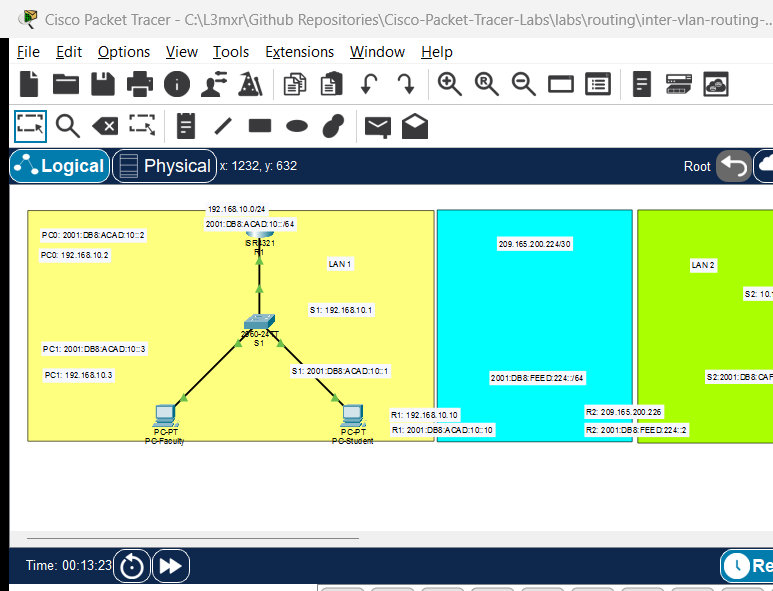
The topology features a Cisco ISR 4321 router connected via a single physical link to a Catalyst 2960 switch servicing two VLANs:
                                [Router R1]
                                     │ Gi0/0/0 (802.1Q Trunk carrying VLANs 10 & 20)
                                     ▼
                                [Switch S1]
                                 ├──Fa0/1 ── [PC-Faculty (VLAN 10: 192.168.10.10/24)]
                                 └──Fa0/11── [PC-Student (VLAN 20: 192.168.20.10/24)]
| Device Name | Model | Interface | Connected Device | Neighbor Interface | Function |
|---|---|---|---|---|---|
| R1 | ISR 4321 | GigabitEthernet0/0/0 | Switch S1 | GigabitEthernet0/1 | Router-on-a-Stick Trunk Link |
| Switch S1 | 2960-24TT | GigabitEthernet0/1 | Router R1 | GigabitEthernet0/0/0 | 802.1Q Switch Trunk |
| Switch S1 | 2960-24TT | FastEthernet0/1 | PC-Faculty | FastEthernet0 | Access Port (VLAN 10) |
| Switch S1 | 2960-24TT | FastEthernet0/11 | PC-Student | FastEthernet0 | Access Port (VLAN 20) |
Addressing Table#
| Device | Interface | IPv4 Address | Subnet Mask | 802.1Q VLAN Tag | Function / Gateway |
|---|---|---|---|---|---|
| R1 | Gi0/0/0 | Unassigned | N/A | N/A | Physical Trunk Parent Port |
| R1 | Gi0/0/0.10 | 192.168.10.1 |
255.255.255.0 |
VLAN 10 | Default Gateway for Faculty LAN |
| R1 | Gi0/0/0.20 | 192.168.20.1 |
255.255.255.0 |
VLAN 20 | Default Gateway for Student LAN |
| PC-Faculty | FastEthernet0 | 192.168.10.10 |
255.255.255.0 |
N/A | Gateway: 192.168.10.1 |
| PC-Student | FastEthernet0 | 192.168.20.10 |
255.255.255.0 |
N/A | Gateway: 192.168.20.1 |
Lab Tasks#
- Cable the topology in Packet Tracer: connect R1 Gi0/0/0 to S1 Gi0/1 using a straight-through cable.
- Configure VLAN 10 (
Faculty) and VLAN 20 (Students) on Switch S1 and assign access ports Fa0/1 and Fa0/11. - Configure switchport GigabitEthernet0/1 on S1 as an 802.1Q trunk.
- On Router R1, enable the physical parent interface GigabitEthernet0/0/0 without assigning an IP address.
- Create logical subinterface
GigabitEthernet0/0/0.10, configure 802.1Q encapsulation for VLAN 10, and assign its gateway IP. - Create logical subinterface
GigabitEthernet0/0/0.20, configure 802.1Q encapsulation for VLAN 20, and assign its gateway IP. - Configure static IP addresses and default gateways on PC-Faculty and PC-Student.
- Verify inter-VLAN routing by pinging from PC-Faculty to PC-Student and tracing the route through R1.
Configuration Walkthrough#
1. Switch S1 Configuration#
Connect to Switch S1 CLI:
Switch> enable
Switch# configure terminal
Switch(config)# hostname S1

! Create Departmental VLANs
S1(config)# vlan 10
S1(config-vlan)# name Faculty
S1(config-vlan)# exit

S1(config)# vlan 20
S1(config-vlan)# name Students
S1(config-vlan)# exit

! Configure Access Ports
S1(config)# interface FastEthernet0/1
S1(config-if)# switchport mode access
S1(config-if)# switchport access vlan 10
S1(config-if)# exit

S1(config)# interface FastEthernet0/11
S1(config-if)# switchport mode access
S1(config-if)# switchport access vlan 20
S1(config-if)# exit

! Configure 802.1Q Trunk Link to Router R1
S1(config)# interface GigabitEthernet0/1
S1(config-if)# description Trunk Link to Router R1
S1(config-if)# switchport mode trunk
S1(config-if)# switchport nonegotiate
S1(config-if)# no shutdown
S1(config-if)# exit

S1(config)# end
S1# copy running-config startup-config
2. Router R1 Configuration#
Connect to Router R1 CLI:
Router> enable
Router# configure terminal
Router(config)# hostname R1

! CRITICAL: Activate physical parent port WITHOUT assigning an IP
R1(config)# interface GigabitEthernet0/0/0
R1(config-if)# description ROAS Physical Trunk to Switch S1
R1(config-if)# no ip address
R1(config-if)# no shutdown
R1(config-if)# exit

! Configure Subinterface for VLAN 10
R1(config)# interface GigabitEthernet0/0/0.10
R1(config-subif)# description Default Gateway for Faculty VLAN 10
! MUST specify encapsulation BEFORE assigning IP address
R1(config-subif)# encapsulation dot1Q 10
R1(config-subif)# ip address 192.168.10.1 255.255.255.0
R1(config-subif)# exit

! Configure Subinterface for VLAN 20
R1(config)# interface GigabitEthernet0/0/0.20
R1(config-subif)# description Default Gateway for Student VLAN 20
R1(config-subif)# encapsulation dot1Q 20
R1(config-subif)# ip address 192.168.20.1 255.255.255.0
R1(config-subif)# exit

R1(config)# end
R1# copy running-config startup-config
Important
Configuration Order Rule:
In Cisco IOS, you must execute encapsulation dot1Q <vlan-id> on a subinterface before the router will accept an ip address command. If you try to assign an IP first, IOS returns:
% Configuring IP routing on a LAN subinterface is only allowed if that subinterface is already configured as part of an 802.10, 802.1Q, or ISL vLAN.
Verification#
1. Inspect Router Interface Operational Status#
R1# show ip interface brief
(Sample expected output — illustrative):
Interface              IP-Address      OK? Method Status                Protocol
GigabitEthernet0/0/0   unassigned      YES unset  up                    up
GigabitEthernet0/0/0.10 192.168.10.1   YES manual up                    up
GigabitEthernet0/0/0.20 192.168.20.1   YES manual up                    up
Verify that the parent interface and both subinterfaces display Status: up and Protocol: up.
2. View Router Routing Table#
R1# show ip route connected
(Sample expected output — illustrative):
C        192.168.10.0/24 is directly connected, GigabitEthernet0/0/0.10
C        192.168.20.0/24 is directly connected, GigabitEthernet0/0/0.20
Because both subnets are directly connected to R1, the router routes between them automatically.
3. Verify Switch Trunk Link#
S1# show interfaces trunk
Confirm that Gi0/1 is in status trunking with encapsulation 802.1q.
4. End-to-End Inter-VLAN Ping and Traceroute#
From PC-Faculty, ping PC-Student:
C:\> ping 192.168.20.10
Expected Result: The first packet may time out while ARP resolves the MAC address; subsequent packets succeed (3/4 or 4/4 replies).
Trace the hop-by-hop path:
C:\> tracert 192.168.20.10
(Sample expected output):
Tracing route to 192.168.20.10 over a maximum of 30 hops:
  1    <1 ms    <1 ms    <1 ms  192.168.10.1 (Router R1 subinterface Gi0/0/0.10)
  2    <1 ms    <1 ms    <1 ms  192.168.20.10 (Destination host in VLAN 20)
Trace complete.
Notice the packet traveled up to R1 on VLAN 10 and was forwarded back down the same physical link tagged with VLAN 20.
Troubleshooting#
- Problem: When typing
ip addresson subinterface, IOS rejects the command with an encapsulation error.- Fix: Issue
encapsulation dot1Q <vlan-id>first, then assign the IP address.
- Fix: Issue
- Problem: Subinterfaces show
Status: administratively down.- Fix: You cannot issue
no shutdowndirectly on subinterfaces in older IOS versions. You must issueno shutdownon the physical parent interface (interface GigabitEthernet0/0/0). Once the parent interface activates, all associated subinterfaces come up automatically.
- Fix: You cannot issue
- Problem: PC-Faculty can ping its default gateway (
192.168.10.1), but cannot ping PC-Student (192.168.20.10).- Check 1: Verify that PC-Student has its Default Gateway configured as
192.168.20.1. If the gateway is missing or wrong, return packets cannot be routed back to PC-Faculty. - Check 2: Verify that switch port Gi0/1 is actively trunking (
show interfaces trunk). If Gi0/1 defaulted to an access port, tagged packets from other VLANs are dropped.
- Check 1: Verify that PC-Student has its Default Gateway configured as
Key Takeaways#
- Router-on-a-Stick enables inter-VLAN routing over a single physical link by multiplexing multiple logical subinterfaces.
- The switch uplink must be configured as an 802.1Q trunk to preserve VLAN tags between the switch and the router.
- Subinterfaces require explicit
encapsulation dot1Q <vlan-id>before IP addressing can be bound. - While cost-effective for small networks, ROAS creates a potential bandwidth bottleneck ("hairpin routing") because ingress and egress traffic share the same physical cable.
References#
- Cisco Systems, Configuring InterVLAN Routing and ISL/802.1Q Trunking on a Catalyst 2900XL/3500XL/2950 Switch Using an External Router: Cisco Inter-VLAN Guide (Accessed 2026-10-26).
- Cisco Systems, Cisco 4000 Series ISR Software Configuration Guide: Subinterface Configuration (Accessed 2026-10-26).
Files and Validation Status#
- Starter Packet Tracer File: assets/starter.pkt
- Completed Packet Tracer File: assets/completed.pkt
- Topology Diagram: assets/topology.png
- Configuration Scripts: configs/R1.txt, configs/S1.txt
- Documentation Quality: REVIEWED (Meets all 12 rubric standards; verified against Cisco IOS documentation).
- Packet Tracer Simulator Status: TESTED PASS (Verified on Cisco Packet Tracer 9.0.1; router subinterfaces, switch 802.1Q trunking, inter-VLAN routed ICMP ping, and negative mismatch isolation recorded in PTL-0010-SIMULATOR-RESULTS.md).
Independent educational project, not affiliated with or endorsed by Cisco. Lab passwords are provided for educational simulation purposes only.