Category: network-services · Difficulty: beginner · Lab ID: PTL-0037 · Document: reviewed · Simulator: tested pass
The Domain Name System (DNS) is a cornerstone network service that translates human-friendly Fully Qualified Domain Names (FQDNs)—such as corpweb.local, portal.corpweb.local, and www.corpweb.local—into machine-routable IPv4 addresses. In production enterprise environments, when users report that "the Internet is down" or "the intranet web portal is unreachable," the root cause is frequently a Domain Name System failure rather than an underlying Layer 1, 2, or 3 physical or routing transport outage.
DNS troubleshooting requires a disciplined, layered diagnostic methodology. A network engineer must first verify whether direct IP connectivity functions before investigating higher-layer name resolution. If a client can ping an internal server by its IPv4 address but cannot open its web portal by hostname, the underlying IP routing infrastructure is intact, isolating the problem specifically to DNS client configuration, network transport to the DNS server, or the authoritative DNS server database itself.
In this laboratory, you will step into an enterprise network environment experiencing multiple Domain Name System failures across routed subnets. You will systematically identify, isolate, and remediate three distinct DNS failure modes:
- Misconfigured Client Resolver: A workstation pointing to an invalid, unreachable DNS server IP address.
- Disabled DNS Daemon Service: A corporate DNS server whose name-resolution daemon is switched off.
- Missing Resource Records: An authoritative DNS server lacking essential Address (A) and Canonical Name (CNAME) records for internal corporate web portals.
Following remediation, you will verify complete restoration of network name resolution using ipconfig, nslookup, ping by FQDN, and web browser clients.
Learning Objectives#
- Isolate Domain Name System (DNS) failures from underlying Layer 1 through Layer 3 network routing issues using direct IP and hostname ICMP ping tests.
- Inspect and verify client DNS resolver settings from the command line using
ipconfig /all. - Reconfigure incorrect primary DNS server IPv4 addresses on client workstations.
- Diagnose DNS server service states and activate disabled DNS daemon processes on Cisco Packet Tracer server endpoints.
- Identify missing resource records in an authoritative DNS database and create required Address (A) and Canonical Name (CNAME) alias records.
- Analyze command-line outputs from
nslookupto differentiate between DNS server timeouts and non-existent domain (NXDOMAIN) responses. - Verify end-to-end name resolution, alias redirection, and HTTP web portal delivery across routed subnets.
Prerequisites#
- Basic understanding of IPv4 addressing, subnet masks, and default gateways.
- Completion of PTL-0014: Default Gateway Troubleshooting or equivalent routed network fundamentals.
- Completion of PTL-0022: DNS Records and HTTP Web Services or familiarity with DNS A and CNAME record concepts.
- Familiarity with client command-line utilities (
ping,ipconfig,nslookup). - Cisco Packet Tracer 8.2 or newer (Packet Tracer 9.0+ verified).
Topology#
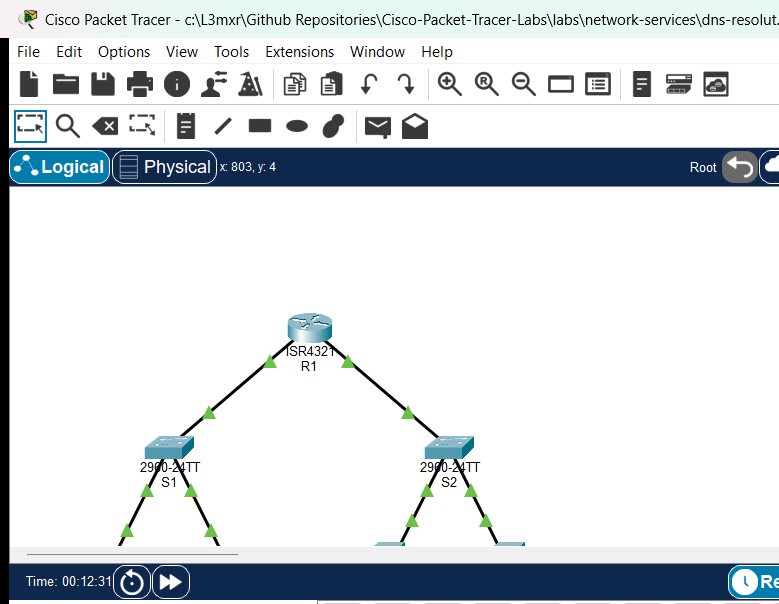
The topology models an enterprise network partitioned into two separate subnets connected through default gateway router R1:
- Client LAN (
192.168.1.0/24): Accommodates client workstationsPC-1andPC-2connected through access switchS1. - Server Farm LAN (
192.168.2.0/24): Houses the corporateDNS-Server(192.168.2.10) and corporateWeb-Server(192.168.2.20) connected through access switchS2.
[PC-1]──Fa0 ───── Fa0/2──[Switch S1]──Fa0/1 ───── Gi0/0/0──[Router R1]
(192.168.1.10)           (Client LAN)                       │ (Gateway Router)
                                                            │ Gi0/0/1 (192.168.2.1/24)
[PC-2]──Fa0 ───── Fa0/3─────────────────────────────────────┘
(192.168.1.20)                                            [Switch S2]
                                                            │ (Server Farm LAN)
                                      ┌─────────────────────┴─────────────────────┐
                                     Fa0/2                                       Fa0/3
                                      │                                           │
                                 [DNS-Server]                                [Web-Server]
                                (192.168.2.10)                              (192.168.2.20)
| Device Name | Model | Interface | Connected Device | Neighbor Interface | Network Role |
|---|---|---|---|---|---|
| R1 | Cisco ISR 4321 | GigabitEthernet0/0/0 | Switch S1 | FastEthernet0/1 | Client LAN Gateway (192.168.1.1/24) |
| R1 | Cisco ISR 4321 | GigabitEthernet0/0/1 | Switch S2 | FastEthernet0/1 | Server Farm Gateway (192.168.2.1/24) |
| Switch S1 | Catalyst 2960-24TT | FastEthernet0/2 | PC-1 | FastEthernet0 | Access Port for Client Workstation 1 |
| Switch S1 | Catalyst 2960-24TT | FastEthernet0/3 | PC-2 | FastEthernet0 | Access Port for Client Workstation 2 |
| Switch S1 | Catalyst 2960-24TT | FastEthernet0/1 | Router R1 | GigabitEthernet0/0/0 | Uplink to Gateway Router R1 |
| Switch S2 | Catalyst 2960-24TT | FastEthernet0/2 | DNS-Server | FastEthernet0 | Access Port for Enterprise DNS Server |
| Switch S2 | Catalyst 2960-24TT | FastEthernet0/3 | Web-Server | FastEthernet0 | Access Port for Intranet Web Server |
| Switch S2 | Catalyst 2960-24TT | FastEthernet0/1 | Router R1 | GigabitEthernet0/0/1 | Uplink to Gateway Router R1 |
| PC-1 | PC-PT | FastEthernet0 | Switch S1 | FastEthernet0/2 | Client Workstation 1 |
| PC-2 | PC-PT | FastEthernet0 | Switch S1 | FastEthernet0/3 | Client Workstation 2 |
| DNS-Server | Server-PT | FastEthernet0 | Switch S2 | FastEthernet0/2 | Corporate Authoritative DNS Server |
| Web-Server | Server-PT | FastEthernet0 | Switch S2 | FastEthernet0/3 | Corporate Intranet Web Portal Server |
Addressing Table#
| Device | Interface | IPv4 Address | Subnet Mask | Default Gateway | DNS Server | Network Role |
|---|---|---|---|---|---|---|
| R1 | Gi0/0/0 |
192.168.1.1 |
255.255.255.0 |
N/A | N/A | Client LAN Default Gateway |
| R1 | Gi0/0/1 |
192.168.2.1 |
255.255.255.0 |
N/A | N/A | Server Farm Default Gateway |
| S1 | Vlan1 |
Unassigned | Unassigned | 192.168.1.1 |
N/A | Layer 2 Client Access Switch |
| S2 | Vlan1 |
Unassigned | Unassigned | 192.168.2.1 |
N/A | Layer 2 Server Access Switch |
| PC-1 | Fa0 |
192.168.1.10 |
255.255.255.0 |
192.168.1.1 |
192.168.2.10 (Fix from .99) |
Client Workstation 1 |
| PC-2 | Fa0 |
192.168.1.20 |
255.255.255.0 |
192.168.1.1 |
192.168.2.10 |
Client Workstation 2 |
| DNS-Server | Fa0 |
192.168.2.10 |
255.255.255.0 |
192.168.2.1 |
127.0.0.1 |
Authoritative DNS Server |
| Web-Server | Fa0 |
192.168.2.20 |
255.255.255.0 |
192.168.2.1 |
192.168.2.10 |
Intranet Web Server (Port 80 HTTP) |
Intranet DNS Resource Records Required#
| Record Name (FQDN) | Record Type | Target / Value | Description |
|---|---|---|---|
corpweb.local |
A | 192.168.2.20 |
Authoritative primary address record for corporate intranet |
portal.corpweb.local |
A | 192.168.2.20 |
Direct portal host address record |
www.corpweb.local |
CNAME | corpweb.local |
Canonical name alias pointing standard WWW prefix to primary A record |
Lab Tasks#
- Verify Baseline Layer 1–3 Network Transport: Test end-to-end IP reachability by pinging default gateways and the target web server (
192.168.2.20) directly by IP address fromPC-1. - Diagnose Client DNS Resolver Faults (Fault 1): Execute
ipconfig /allandnslookup corpweb.localonPC-1. Observe the DNS request timeout to invalid address192.168.2.99. - Remediate Client DNS Configuration: Reconfigure
PC-1with the correct primary DNS server address (192.168.2.10). - Diagnose and Enable DNS Server Daemon (Fault 2): Inspect
DNS-Serverand observe that the DNS service process is disabled (Off). Toggle the service toOn. - Diagnose and Populate Missing Resource Records (Fault 3): Test resolution of
corpweb.local,portal.corpweb.local, andwww.corpweb.local. Populate the authoritative database with required A and CNAME records. - Verify End-to-End Name Resolution: Use
nslookuponPC-1andPC-2to confirm that all three domain names resolve to192.168.2.20. - Verify Integrated Hostname Resolution with Ping: Test
ping corpweb.localfrom client workstations and verify successful name resolution and ICMP echo reply reception. - Verify Web Service Access via Web Browser: Launch the desktop Web Browser on
PC-1and loadhttp://www.corpweb.localandhttp://www.corpweb.localto confirm end-user service delivery.
Configuration Walkthrough#
1. Baseline Verification in Starter State#
Open the starter activity file (assets/starter.pkt). Begin by verifying whether basic Layer 3 IP routing functions between the client subnet and the server subnet. On PC-1, open the Command Prompt and ping the default gateway and web server by IP:
C:\>ping 192.168.1.1

Pinging 192.168.1.1 with 32 bytes of data:

Reply from 192.168.1.1: bytes=32 time<1ms TTL=255
Reply from 192.168.1.1: bytes=32 time<1ms TTL=255
Reply from 192.168.1.1: bytes=32 time<1ms TTL=255
Reply from 192.168.1.1: bytes=32 time<1ms TTL=255

Ping statistics for 192.168.1.1:
    Packets: Sent = 4, Received = 4, Lost = 0 (0% loss)
Now ping Web-Server (192.168.2.20):
C:\>ping 192.168.2.20

Pinging 192.168.2.20 with 32 bytes of data:

Reply from 192.168.2.20: bytes=32 time<1ms TTL=127
Reply from 192.168.2.20: bytes=32 time<1ms TTL=127
Reply from 192.168.2.20: bytes=32 time<1ms TTL=127
Reply from 192.168.2.20: bytes=32 time<1ms TTL=127

Ping statistics for 192.168.2.20:
    Packets: Sent = 4, Received = 4, Lost = 0 (0% loss)
Note
Direct IP reachability across router R1 succeeds with 0% packet loss. This proves that Layer 1 cabling, Layer 2 switch ports, and Layer 3 IP addressing and routing are operating normally.
2. Identify Fault 1: Misconfigured Client DNS Server IP#
Attempt to resolve the intranet portal hostname from PC-1:
C:\>nslookup corpweb.local

Server: [192.168.2.99]
Address:  192.168.2.99
DNS request timed out.
	timeout was 15000 milli seconds.
DNS request timed out.
	timeout was 15000 milli seconds.
*** Request to 192.168.2.99 timed-out
Notice that nslookup attempted to query 192.168.2.99. Inspect the network configuration of PC-1 using ipconfig /all:
C:\>ipconfig /all

FastEthernet0 Connection:(default port)

   Connection-specific DNS Suffix..:
   Physical Address................: 0001.43B8.5E7E
   IPv4 Address....................: 192.168.1.10
   Subnet Mask.....................: 255.255.255.0
   Default Gateway.................: 192.168.1.1
   DNS Servers.....................: 192.168.2.99
The DNS server address is configured as 192.168.2.99, which does not exist in the topology. The legitimate corporate DNS server is located at 192.168.2.10.
Remediation for Fault 1:#
- Click on
PC-1and open the Desktop tab. - Open IP Configuration.
- Under IPv4 configuration, locate the DNS Server field.
- Replace
192.168.2.99with192.168.2.10. - Close the IP Configuration window.
3. Identify Fault 2: Disabled DNS Daemon Service#
Now test name resolution again on PC-1 or PC-2 (which is already configured with DNS server 192.168.2.10):
C:\>nslookup corpweb.local

Server: [192.168.2.10]
Address:  192.168.2.10
DNS request timed out.
	timeout was 15000 milli seconds.
*** Request to 192.168.2.10 timed-out
Notice the crucial difference: the workstation is now querying the correct server address (192.168.2.10), but queries still time out. Pinging 192.168.2.10 directly confirms that the host is reachable:
C:\>ping 192.168.2.10

Reply from 192.168.2.10: bytes=32 time<1ms TTL=127
If the server responds to ICMP echo requests on port 0 but drops or fails to respond to DNS queries on UDP port 53, the DNS service daemon itself is inactive.
Remediation for Fault 2:#
- Click on
DNS-Server. - Navigate to the Services tab in the top menu.
- In the left services menu, select DNS.
- Observe that the Service radio button is currently set to Off.
- Select the On radio button to activate the DNS daemon.
4. Identify Fault 3: Missing Resource Records#
With the DNS daemon running on DNS-Server, execute an nslookup query from PC-2:
C:\>nslookup corpweb.local

Server: [192.168.2.10]
Address:  192.168.2.10
*** UnKnown can't find corpweb.local: Non-existent domain.
Notice the change in error response:
- When the DNS server was unreachable or the service was disabled, the client output was
DNS request timed out. - Now, the DNS server is actively responding on UDP port 53, but it explicitly answers that the requested domain does not exist in its database (
Non-existent domainorNXDOMAIN).
Inspecting the DNS database on DNS-Server reveals that no resource records are defined.
Remediation for Fault 3:#
On DNS-Server, under Services -> DNS:
- Add the primary Address (A) record for the corporate domain:
- Name:
corpweb.local - Type:
A Record - Address:
192.168.2.20 - Click Add.
- Name:
- Add the secondary portal Address (A) record:
- Name:
portal.corpweb.local - Type:
A Record - Address:
192.168.2.20 - Click Add.
- Name:
- Add the Canonical Name (CNAME) alias record for web clients:
- Name:
www.corpweb.local - Type:
CNAME - Host Name:
corpweb.local - Click Add.
- Name:
Verify that all three records are listed in the DNS Service database table:
| Name | Type | Detail |
|---|---|---|
corpweb.local |
A Record | 192.168.2.20 |
portal.corpweb.local |
A Record | 192.168.2.20 |
www.corpweb.local |
CNAME | corpweb.local |
Verification#
1. Verify Primary Name Resolution with nslookup#
On PC-1, open the Command Prompt and query corpweb.local:
C:\>nslookup corpweb.local

Server: [192.168.2.10]
Address:  192.168.2.10

Non-authoritative answer:
Name:   corpweb.local
Address:   192.168.2.20
DNS-Server (192.168.2.10) successfully resolved corpweb.local to the target web server IPv4 address 192.168.2.20.
2. Verify Secondary Portal Resolution#
On PC-2, query the secondary portal FQDN:
C:\>nslookup portal.corpweb.local

Server: [192.168.2.10]
Address:  192.168.2.10

Non-authoritative answer:
Name:   portal.corpweb.local
Address:   192.168.2.20
3. Verify CNAME Alias Redirection#
From PC-2, query the canonical alias www.corpweb.local:
C:\>nslookup www.corpweb.local

Server: [192.168.2.10]
Address:  192.168.2.10

Non-authoritative answer:
Name:   corpweb.local
Address:   192.168.2.20

Aliases:   corpweb.local
The DNS server returned the alias pointer: www.corpweb.local maps to corpweb.local, which resolves directly to 192.168.2.20.
4. Verify Hostname Ping Integration#
On PC-1, test integrated operating system name resolution by pinging corpweb.local by FQDN:
C:\>ping corpweb.local

Pinging 192.168.2.20 with 32 bytes of data:

Reply from 192.168.2.20: bytes=32 time=1ms TTL=127
Reply from 192.168.2.20: bytes=32 time<1ms TTL=127
Reply from 192.168.2.20: bytes=32 time<1ms TTL=127
Reply from 192.168.2.20: bytes=32 time<1ms TTL=127

Ping statistics for 192.168.2.20:
    Packets: Sent = 4, Received = 4, Lost = 0 (0% loss),
Approximate round trip times in milli-seconds:
    Minimum = 0ms, Maximum = 1ms, Average = 0ms
Note
The command prompt indicates: Pinging 192.168.2.20 with 32 bytes of data:. The operating system transparently submitted a background DNS lookup to 192.168.2.10, received the IPv4 address 192.168.2.20, and then dispatched ICMP echo requests to that destination.
5. Verify HTTP Web Portal Access in Web Browser#
- On
PC-1, close the Command Prompt and open the Web Browser application on the Desktop. - In the URL bar, enter
http://www.corpweb.localand click Go. - Verify that the corporate intranet portal page renders:
Welcome to Corporate Intranet
DNS and HTTP services operational. - In the URL bar, test the direct FQDN
http://corpweb.local. Confirm that the portal page loads cleanly.
Troubleshooting#
| Symptom / Error | Probable Root Cause | Diagnostic Command | Remediation Action |
|---|---|---|---|
*** Request to <IP> timed-out |
Client points to a non-existent or unreachable DNS server address | ipconfig /all on client PC |
Verify DNS Server address. In client Desktop -> IP Configuration, set DNS Server to 192.168.2.10. |
DNS request timed out to legitimate server IP (192.168.2.10) |
DNS daemon service is toggled Off on DNS-Server |
ping 192.168.2.10 succeeds, but nslookup times out |
On DNS-Server, navigate to Services -> DNS and set the service radio button to On. |
*** UnKnown can't find <name>: Non-existent domain |
Hostname is misspelled or resource record is absent from the authoritative database | nslookup <name> |
Verify spelling of the FQDN. In DNS-Server -> Services -> DNS, add the missing A or CNAME record. |
| CNAME query returns alias but fails to resolve to an IP | Canonical target name in CNAME record does not match any existing A record | nslookup <cname> |
Ensure the Host Name field of the CNAME record exactly matches the Name of an active A record (corpweb.local). |
Ping by IP succeeds, but ping by hostname fails with Ping request could not find host |
Operating system cannot resolve the FQDN through configured DNS resolvers | Test nslookup <hostname> in Command Prompt |
Check client DNS configuration (ipconfig /all) and ensure authoritative records exist on the DNS server. |
Direct IP ping fails across subnets with Request timed out |
Layer 3 default gateway missing or router interfaces shutdown | ipconfig /all and R1# show ip interface brief |
Ensure client Default Gateway is set to 192.168.1.1 and router interfaces Gi0/0/0 and Gi0/0/1 are up/up. |
Key Takeaways#
- Differentiating Transport vs. Application Failures: Always test Layer 3 direct IP connectivity first using
ping <IP>. If IP ping succeeds while hostname queries fail, the failure is isolated to DNS name resolution. - Interpreting nslookup Diagnostic Output:
Server: [IP]indicates which DNS resolver the client is querying.timed outindicates a network connectivity failure between client and DNS server, an invalid DNS server IP, or an inactive DNS daemon process.Non-existent domain(NXDOMAIN) indicates successful transport to an active DNS server, but the requested domain record does not exist in the server's database.
- Client Resolver Configuration: Workstations cannot resolve hostnames unless configured with a valid, reachable DNS server address matching the network IP addressing plan.
- Resource Record Roles:
- A Records: Establish direct mappings between hostnames and 32-bit IPv4 addresses.
- CNAME Records: Establish alias references pointing to canonical hostnames, facilitating service migration and multi-service hosting.
- Integration across the Protocol Stack: End-user applications (such as web browsers) rely on client OS resolver libraries to perform transparent DNS lookups before establishing TCP/IP transport connections.
References#
- IETF RFC 1034: Domain Names — Concepts and Facilities
- IETF RFC 1035: Domain Names — Implementation and Specification
- IETF RFC 7230: Hypertext Transfer Protocol (HTTP/1.1): Message Syntax and Routing
- Cisco CCNA 200-301 Official Cert Guide: IP Services and Name Resolution
Files and Validation Status#
| File Name | File Purpose | Validation Status |
|---|---|---|
metadata.json |
Curriculum indexing and specification metadata | Validated against repository JSON schema |
README.md |
Primary lab guide and step-by-step instructions | Validated against required 11 canonical H2 sections |
verification.md |
In-depth verification and fault recovery matrix | Validated with POS/NEG criteria |
assets/starter.pkt |
Initial student activity file with intentional DNS faults | Validated in Cisco Packet Tracer 9.0.1 |
assets/completed.pkt |
Fully configured golden reference solution | Validated in Cisco Packet Tracer 9.0.1 |
assets/topology.png |
Live simulator topology canvas screenshot | Validated PNG image |
configs/R1.txt |
Default gateway router configuration | Verified syntax |
configs/S1.txt |
Client LAN switch configuration | Verified syntax |
configs/S2.txt |
Server farm switch configuration | Verified syntax |