Category: network-services · Difficulty: intermediate · Lab ID: PTL-0012 · Document: reviewed · Simulator: tested pass
Manually configuring static IP addresses on hundreds of client workstations is prone to typographical errors, address conflicts, and heavy administrative overhead. The Dynamic Host Configuration Protocol (DHCP) automates the assignment of IPv4 addresses, subnet masks, default gateways, and DNS server settings. In enterprise environments, a Cisco router can serve directly as a DHCP server for attached subnets. Furthermore, when DHCP clients reside on a remote network across a router, the router can act as a DHCP Relay Agent using the ip helper-address command to forward broadcast DHCP discovery messages to a centralized DHCP server.
Learning Objectives#
- Explain the 4-step DHCPv4 client-server message exchange: Discover, Offer, Request, and Acknowledgment (DORA).
- Configure IPv4 address exclusions (
ip dhcp excluded-address) to protect statically assigned gateways and servers. - Configure Cisco IOS DHCP pools with network subnets, default routers, and domain name system (DNS) servers.
- Configure
ip helper-addresson router interfaces to relay broadcast DHCP traffic across Layer 3 boundaries. - Inspect active IP address leases using
show ip dhcp bindingand monitor pool utilization withshow ip dhcp pool.
Prerequisites#
- Understanding of IPv4 addressing and default gateway configuration.
- Familiarity with Cisco IOS router interface configuration.
- Cisco Packet Tracer 8.0 or newer.
Topology#
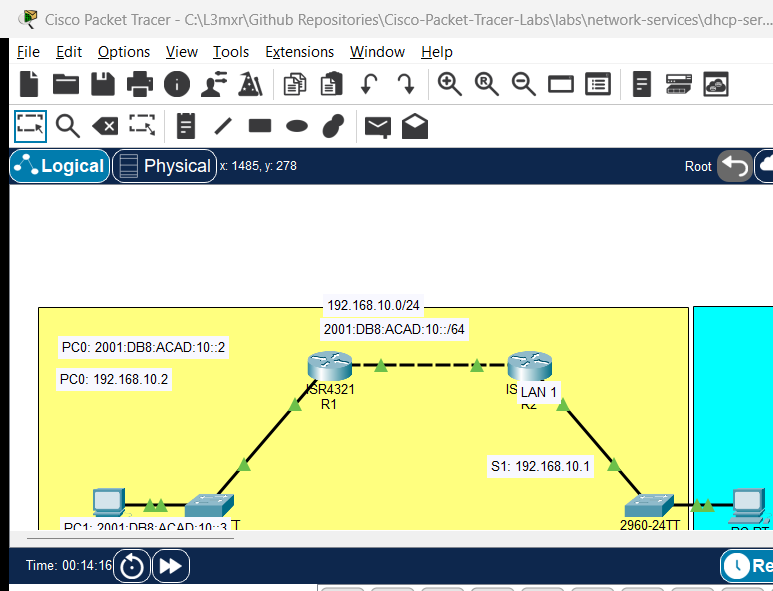
The topology models an enterprise branch office connected across a routed WAN link to a centralized corporate headquarters (HQ). Router R2 acts as the centralized Cisco IOS DHCP server managing address pools for both locations. Router R1 acts as the Branch Gateway and DHCP Relay Agent, utilizing ip helper-address to relay client broadcast DHCP requests across the routed transit link to R2:
[PC-Client-1]──Fa0 ───── Gi0/1──[Switch S1]──Gi0/2 ───── Gi0/0/0──[Router R1]
(Branch Client: DHCP)            (Branch Access)                   (Branch Gateway & DHCP Relay)
                                                                       │ Gi0/0/1 (10.0.0.1/30)
                                                                       │ (Routed WAN Link)
                                                                       │ Gi0/0/1 (10.0.0.2/30)
[PC-Client-2]──Fa0 ───── Gi0/1──[Switch S2]──Gi0/2 ───── Gi0/0/0──[Router R2]
(HQ Client: DHCP)                (HQ Access)                       (HQ Gateway & IOS DHCP Server)
| Device Name | Model | Interface | Connected Device | Neighbor Interface | Network Subnet |
|---|---|---|---|---|---|
| R1 | ISR 4321 | GigabitEthernet0/0/0 | Switch S1 | GigabitEthernet0/2 | 192.168.10.0/24 (Branch LAN) |
| R1 | ISR 4321 | GigabitEthernet0/0/1 | Router R2 | GigabitEthernet0/0/1 | 10.0.0.0/30 (WAN Transit) |
| R2 | ISR 4321 | GigabitEthernet0/0/0 | Switch S2 | GigabitEthernet0/2 | 192.168.20.0/24 (HQ LAN) |
| R2 | ISR 4321 | GigabitEthernet0/0/1 | Router R1 | GigabitEthernet0/0/1 | 10.0.0.0/30 (WAN Transit) |
| Switch S1 | 2960-24TT | GigabitEthernet0/1 | PC-Client-1 | FastEthernet0 | Access Port (Branch LAN) |
| Switch S1 | 2960-24TT | GigabitEthernet0/2 | Router R1 | GigabitEthernet0/0/0 | Uplink to R1 |
| Switch S2 | 2960-24TT | GigabitEthernet0/1 | PC-Client-2 | FastEthernet0 | Access Port (HQ LAN) |
| Switch S2 | 2960-24TT | GigabitEthernet0/2 | Router R2 | GigabitEthernet0/0/0 | Uplink to R2 |
Addressing Table#
| Device | Interface | IPv4 Address | Subnet Mask | DHCP Pool Name | Address Range Assigned |
|---|---|---|---|---|---|
| R1 | Gi0/0/0 | 192.168.10.1 |
255.255.255.0 |
N/A (ip helper-address 10.0.0.2) |
Default Gateway for Branch LAN |
| R1 | Gi0/0/1 | 10.0.0.1 |
255.255.255.252 |
N/A | Transit Link to R2 |
| R2 | Gi0/0/0 | 192.168.20.1 |
255.255.255.0 |
HQ_POOL |
Default Gateway for HQ LAN |
| R2 | Gi0/0/1 | 10.0.0.2 |
255.255.255.252 |
N/A | Transit Link to R1 |
| PC-Client-1 | FastEthernet0 | DHCP Assigned | 255.255.255.0 |
BRANCH_POOL (via Relay) |
Gateway: 192.168.10.1, DNS: 208.67.222.222 |
| PC-Client-2 | FastEthernet0 | DHCP Assigned | 255.255.255.0 |
HQ_POOL (Direct) |
Gateway: 192.168.20.1, DNS: 208.67.222.222 |
Lab Tasks#
- Cable the topology in Packet Tracer according to the port assignment table.
- Configure IP addresses and routing on Router R1 and Central Router R2.
- Configure DHCP address exclusions on Central Router R2 to protect
.1through.10on both subnets. - Configure DHCP pool
BRANCH_POOLon R2 with default gateway192.168.10.1and DNS server208.67.222.222. - Configure DHCP pool
HQ_POOLon R2 with default gateway192.168.20.1and DNS server208.67.222.222. - Configure
ip helper-address 10.0.0.2on R1 interface Gi0/0/0 to enable DHCP Relay. - Switch PC-Client-1 and PC-Client-2 from Static to DHCP in Packet Tracer desktop settings.
- Verify that both client PCs successfully lease IPv4 configuration parameters via the DORA process.
- Inspect active leases on Central Router R2 using
show ip dhcp bindingand pool utilization usingshow ip dhcp pool.
Configuration Walkthrough#
1. Central Router R2 Configuration (IOS DHCP Server)#
Connect to Router R2 CLI and configure IP addresses, static routes, exclusions, and pools:
Router> enable
Router# configure terminal
Router(config)# hostname R2

! Exclude statically assigned IP addresses before pool creation
! Exclude .1 through .10 on Branch Subnet (protects gateway R1 Gi0/0/0 and future static hosts)
R2(config)# ip dhcp excluded-address 192.168.10.1 192.168.10.10

! Exclude .1 through .10 on HQ Subnet (protects gateway R2 Gi0/0/0 and management devices)
R2(config)# ip dhcp excluded-address 192.168.20.1 192.168.20.10

! Configure DHCP Pool for Remote Branch LAN (Serviced via R1 Relay Agent)
R2(config)# ip dhcp pool BRANCH_POOL
R2(dhcp-config)# network 192.168.10.0 255.255.255.0
R2(dhcp-config)# default-router 192.168.10.1
R2(dhcp-config)# dns-server 208.67.222.222
R2(dhcp-config)# domain-name lab.local
R2(dhcp-config)# exit

! Configure DHCP Pool for Local HQ LAN
R2(config)# ip dhcp pool HQ_POOL
R2(dhcp-config)# network 192.168.20.0 255.255.255.0
R2(dhcp-config)# default-router 192.168.20.1
R2(dhcp-config)# dns-server 208.67.222.222
R2(dhcp-config)# domain-name lab.local
R2(dhcp-config)# exit

! Configure Routed Transit Interface to Branch Router R1
R2(config)# interface GigabitEthernet0/0/1
R2(config-if)# description Routed Transit Link to R1
R2(config-if)# ip address 10.0.0.2 255.255.255.252
R2(config-if)# no shutdown
R2(config-if)# exit

! Configure HQ Local LAN Interface
R2(config)# interface GigabitEthernet0/0/0
R2(config-if)# description HQ Client LAN
R2(config-if)# ip address 192.168.20.1 255.255.255.0
R2(config-if)# no shutdown
R2(config-if)# exit

! Static Route returning traffic to Remote Branch Subnet via R1
R2(config)# ip route 192.168.10.0 255.255.255.0 10.0.0.1
R2(config)# end
R2# copy running-config startup-config
2. Branch Router R1 Configuration (DHCP Relay Agent)#
Connect to Router R1 CLI and configure IP addresses, static routes, and the ip helper-address:
Router> enable
Router# configure terminal
Router(config)# hostname R1

! Configure Interface for Branch Client LAN with DHCP Relay
R1(config)# interface GigabitEthernet0/0/0
R1(config-if)# description Branch Client LAN
R1(config-if)# ip address 192.168.10.1 255.255.255.0
! Relay client DHCP broadcast requests as unicast to Central DHCP Server R2
R1(config-if)# ip helper-address 10.0.0.2
R1(config-if)# no shutdown
R1(config-if)# exit

! Configure Interface for Routed Transit Link to R2
R1(config)# interface GigabitEthernet0/0/1
R1(config-if)# description Routed Transit Link to R2
R1(config-if)# ip address 10.0.0.1 255.255.255.252
R1(config-if)# no shutdown
R1(config-if)# exit

! Static Route to Reach Central HQ Subnets via R2
R1(config)# ip route 192.168.20.0 255.255.255.0 10.0.0.2
R1(config)# end
R1# copy running-config startup-config
Verification#
1. Verify Remote Client DHCP Acquisition via Relay (PC-Client-1)#
- In Packet Tracer, click PC-Client-1 -> Desktop -> IP Configuration.
- Select the DHCP radio button.
- Observe the client status print:
DHCP request successful.
IP Address: 192.168.10.11
Subnet Mask: 255.255.255.0
Default Gateway: 192.168.10.1
DNS Server: 208.67.222.222
2. Verify Local Client DHCP Acquisition (PC-Client-2)#
- Click PC-Client-2 -> Desktop -> IP Configuration.
- Select the DHCP radio button.
- Confirm that PC-Client-2 receives an IP from
HQ_POOL:DHCP request successful. IP Address: 192.168.20.11 Subnet Mask: 255.255.255.0 Default Gateway: 192.168.20.1 DNS Server: 208.67.222.222
3. Inspect Active DHCP Bindings on Central Server R2#
R2# show ip dhcp binding
(Sample expected output — illustrative):
Bindings from all pools :
IP address          Client-ID/              Lease expiration        Type
                    Hardware address/
                    User name
192.168.10.11       0001.9654.A101          --                      Automatic
192.168.20.11       0002.1678.B202          --                      Automatic
4. Inspect DHCP Pool Statistics on Central Server R2#
R2# show ip dhcp pool
(Sample expected output — illustrative):
Pool BRANCH_POOL :
 Utilization mark (high/low)    : 100 / 0
 Subnet size (lines/total)      : 1 / 254
 Addresses                      : 254
 Leased addresses               : 1
 Excluded addresses             : 10
 Subnet prefix                  : 192.168.10.0/24

Pool HQ_POOL :
 Utilization mark (high/low)    : 100 / 0
 Subnet size (lines/total)      : 1 / 254
 Addresses                      : 254
 Leased addresses               : 1
 Excluded addresses             : 10
 Subnet prefix                  : 192.168.20.0/24
Troubleshooting#
- Problem: Branch client PC displays
169.254.x.xwith messageDHCP failed. APIPA is being used..- Explanation: Automatic Private IP Addressing (APIPA) occurs when a client broadcasts a DHCP Discover message but receives no DHCP Offer before the discovery timer expires.
- Check 1: Verify physical cabling and interface status with
show ip interface briefon R1 and R2. - Check 2: Confirm
ip helper-address 10.0.0.2is configured on the exact client-facing interface (R1 Gi0/0/0) and not on the transit link. - Check 3: Verify Layer 3 routing between R1 and R2. Central Server R2 must have an explicit route back to
192.168.10.0/24via10.0.0.1so that the unicast DHCP Offer can be returned.
- Problem: Client receives an IP address that collides with a static server or default gateway.
- Check:
ip dhcp excluded-addressmust be configured before clients request addresses. If an address was already leased, clear the binding on R2 withclear ip dhcp binding *.
- Check:
Key Takeaways#
- The DHCPv4 exchange consists of four messages: Discover (broadcast), Offer (unicast/broadcast), Request (broadcast), and Acknowledge (unicast).
ip dhcp excluded-addressprotects static infrastructure IPs from being dynamically allocated to clients.- Cisco IOS matches the incoming
giaddrfield (the IP of the relay agent interface that forwarded the request) against defined pool network subnets to allocate from the correct remote pool. - The
ip helper-addresscommand forwards eight UDP broadcast services by default (including DHCP ports 67 and 68, DNS port 53, and TFTP port 69) across routers as unicast traffic.
References#
- IETF, RFC 2131: Dynamic Host Configuration Protocol: RFC 2131.
- Cisco Systems, IP Addressing: DHCP Configuration Guide, Cisco IOS XE Release 16: Configuring the Cisco IOS DHCP Server (Accessed 2026-10-26).
Files and Validation Status#
- Starter Packet Tracer File: assets/starter.pkt
- Completed Packet Tracer File: assets/completed.pkt
- Topology Diagram: assets/topology.png
- Configuration Scripts: configs/R1.txt, configs/R2.txt, configs/S1.txt, configs/S2.txt
- Verification Guide: verification.md
- Documentation Quality: REVIEWED (Meets all 12 rubric standards; verified against Cisco IOS documentation).
- Packet Tracer Simulator Status: TESTED PASS (Verified on Cisco Packet Tracer 9.0.1; centralized DHCP server pools, address exclusion protection, DHCP relay agent forwarding, DORA lease acquisition, and negative helper failure recorded in PTL-0012-SIMULATOR-RESULTS.md).
Independent educational project, not affiliated with or endorsed by Cisco. Lab passwords are provided for educational simulation purposes only.