Category: ip-addressing · Difficulty: beginner · Lab ID: PTL-0005 · Document: reviewed · Simulator: tested pass
A router cannot forward packets to any destination until it has entries in its routing table. The most fundamental routes are directly connected networks. In Cisco IOS 15 and IOS XE, configuring an IP address on an interface and activating it with no shutdown automatically creates two distinct routing table entries: a network route code C (Connected) representing the entire subnet, and a local route code L (Local) representing the specific /32 (or /128) IP address assigned to the physical interface. This lab examines how the routing table is populated, how to filter routing table outputs, and how interface state governs route availability.
Learning Objectives#
- Explain the criteria required for a Cisco router to install directly connected networks into its routing table.
- Distinguish between Connected route codes (
C) and Local route codes (L). - Use the
show ip routecommand and its filtering options (e.g.show ip route connected). - Interpret IPv6 directly connected routes and local host routes using
show ipv6 route. - Demonstrate how disabling an interface (
shutdown) dynamically withdraws its connected routes from the routing table.
Prerequisites#
- Basic familiarity with Cisco router interface configuration and IP addressing.
- Understanding of subnet masks (/24) and IPv6 prefix lengths (/64).
- Cisco Packet Tracer 8.0 or newer.
Topology#
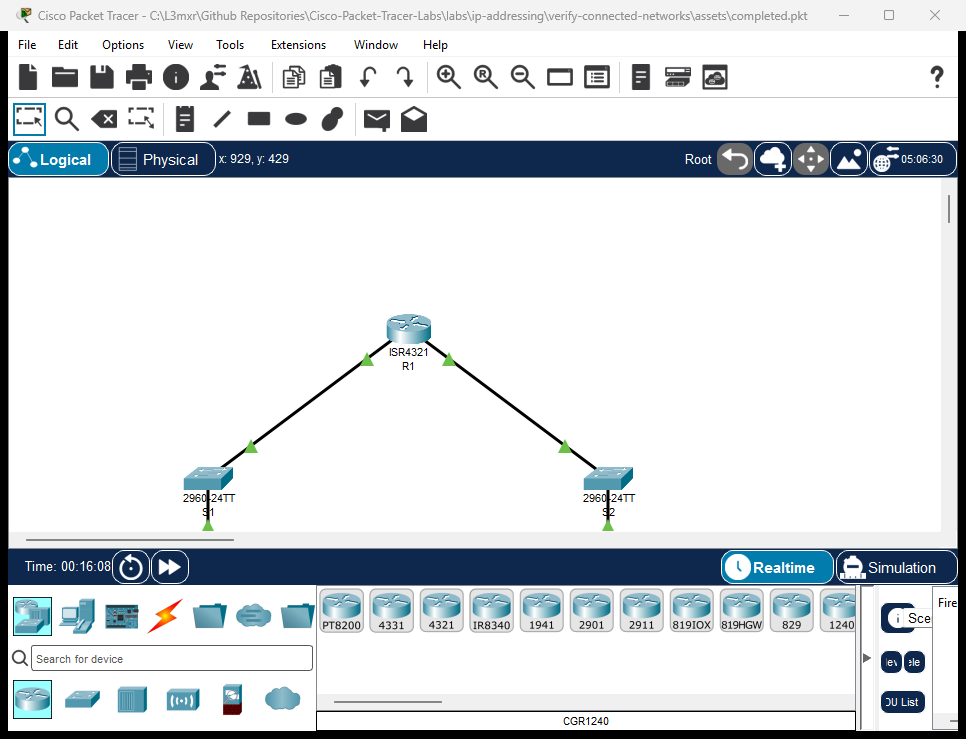
The topology features Router R1 connected to two local subnets:
[PC-A]──Fa0 ───── Gi0/1──[Switch S1]──Gi0/2 ───── Gi0/0/0──[Router R1]──Gi0/0/1 ───── Gi0/2──[Switch S2]──Gi0/1 ───── Fa0──[PC-B]
(LAN 1: 192.168.10.0/24)                                                        (LAN 2: 192.168.20.0/24)
(LAN 1: 2001:db8:acad:10::/64)                                                  (LAN 2: 2001:db8:acad:20::/64)
| Device Name | Model | Interface | Connected Device | Neighbor Interface | Cable Type |
|---|---|---|---|---|---|
| R1 | ISR 4321 | GigabitEthernet0/0/0 | Switch S1 | GigabitEthernet0/2 | Copper Straight-Through |
| R1 | ISR 4321 | GigabitEthernet0/0/1 | Switch S2 | GigabitEthernet0/2 | Copper Straight-Through |
| Switch S1 | 2960-24TT | GigabitEthernet0/1 | PC-A | FastEthernet0 | Copper Straight-Through |
| Switch S2 | 2960-24TT | GigabitEthernet0/1 | PC-B | FastEthernet0 | Copper Straight-Through |
Addressing Table#
| Device | Interface | IPv4 Address | Subnet Mask | IPv6 Global Address | IPv6 Link-Local | Default Gateway |
|---|---|---|---|---|---|---|
| R1 | Gi0/0/0 | 192.168.10.1 |
255.255.255.0 |
2001:db8:acad:10::1/64 |
fe80::1 |
N/A |
| R1 | Gi0/0/1 | 192.168.20.1 |
255.255.255.0 |
2001:db8:acad:20::1/64 |
fe80::1 |
N/A |
| S1 | VLAN 1 (SVI) | 192.168.10.2 |
255.255.255.0 |
N/A | N/A | 192.168.10.1 |
| S2 | VLAN 1 (SVI) | 192.168.20.2 |
255.255.255.0 |
N/A | N/A | 192.168.20.1 |
| PC-A | FastEthernet0 | 192.168.10.10 |
255.255.255.0 |
2001:db8:acad:10::10/64 |
Auto | 192.168.10.1 |
| PC-B | FastEthernet0 | 192.168.20.10 |
255.255.255.0 |
2001:db8:acad:20::10/64 |
Auto | 192.168.20.1 |
Lab Tasks#
- Cable the topology in Packet Tracer and configure host settings on PC-A and PC-B.
- Before configuring R1, view the empty routing table using
show ip route. - Configure dual-stack IP addressing on GigabitEthernet0/0/0 and issue
no shutdown. - Inspect the routing table to observe the appearance of
CandLroutes for LAN 1. - Configure GigabitEthernet0/0/1 and observe the installation of LAN 2 routes.
- Examine the IPv6 routing table using
show ipv6 route. - Administratively disable GigabitEthernet0/0/0 (
shutdown) and verify that its routes are automatically removed from the routing table. - Re-enable the interface and test end-to-end routing between PC-A and PC-B.
Configuration Walkthrough#
Router R1 Configuration#
Router> enable
Router# configure terminal
Router(config)# hostname R1

! Enable IPv6 routing globally
R1(config)# ipv6 unicast-routing

! Configure LAN 1
R1(config)# interface GigabitEthernet0/0/0
R1(config-if)# description Accounting LAN
R1(config-if)# ip address 192.168.10.1 255.255.255.0
R1(config-if)# ipv6 address 2001:db8:acad:10::1/64
R1(config-if)# ipv6 address fe80::1 link-local
R1(config-if)# no shutdown
R1(config-if)# exit

! Configure LAN 2
R1(config)# interface GigabitEthernet0/0/1
R1(config-if)# description Engineering LAN
R1(config-if)# ip address 192.168.20.1 255.255.255.0
R1(config-if)# ipv6 address 2001:db8:acad:20::1/64
R1(config-if)# ipv6 address fe80::1 link-local
R1(config-if)# no shutdown
R1(config-if)# exit

R1(config)# end
R1# copy running-config startup-config
Verification#
1. View the Complete IPv4 Routing Table#
R1# show ip route
(Sample expected output — illustrative):
Codes: L - local, C - connected, S - static, R - RIP, M - mobile, B - BGP
       D - EIGRP, EX - EIGRP external, O - OSPF, IA - OSPF inter area

Gateway of last resort is not set

      192.168.10.0/24 is variably subnetted, 2 subnets, 2 masks
C        192.168.10.0/24 is directly connected, GigabitEthernet0/0/0
L        192.168.10.1/32 is directly connected, GigabitEthernet0/0/0
      192.168.20.0/24 is variably subnetted, 2 subnets, 2 masks
C        192.168.20.0/24 is directly connected, GigabitEthernet0/0/1
L        192.168.20.1/32 is directly connected, GigabitEthernet0/0/1
Note
Understanding C vs L Codes:
C(Connected): Represents the subnet attached to the interface (192.168.10.0/24). The router uses this entry to know which physical interface to use when sending frames to any host on that subnet.L(Local): Introduced in Cisco IOS 15, this represents the exact host IP address assigned to the router's interface with a/32mask (192.168.10.1/32). This allows the router's internal forwarding engine (Cisco Express Forwarding, CEF) to quickly identify packets destined to the router itself versus packets that should be forwarded through the router.
2. Filter the Routing Table by Code#
To view only directly connected routes:
R1# show ip route connected
To view only local host routes:
R1# show ip route local
3. View the IPv6 Routing Table#
R1# show ipv6 route
(Sample expected output — illustrative):
C   2001:DB8:ACAD:10::/64 [0/0]
     via GigabitEthernet0/0/0, directly connected
L   2001:DB8:ACAD:10::1/128 [0/0]
     via GigabitEthernet0/0/0, receive
C   2001:DB8:ACAD:20::/64 [0/0]
     via GigabitEthernet0/0/1, directly connected
L   2001:DB8:ACAD:20::1/128 [0/0]
     via GigabitEthernet0/0/1, receive
L   FF00::/8 [0/0]
     via Null0, receive
Notice the /128 prefix length for local host routes and FF00::/8 multicast reserved route.
4. Observe Route Withdrawal on Interface Shutdown#
R1# configure terminal
R1(config)# interface GigabitEthernet0/0/0
R1(config-if)# shutdown
R1(config-if)# end
R1# show ip route connected
Notice that 192.168.10.0/24 and 192.168.10.1/32 have disappeared from the routing table! A router only installs routes for interfaces whose status is up and line protocol is up.
Re-enable the interface:
R1(config)# interface GigabitEthernet0/0/0
R1(config-if)# no shutdown
The routes immediately reappear.
Troubleshooting#
- Problem: Configured interface IP address does not appear in
show ip route.- Check: Run
show ip interface brief. For an interface route to enter the routing table, the interface must be in theup/upoperational state. If it isadministratively down, issueno shutdown. If it isup/down, check that the cable is connected to an active switch.
- Check: Run
- Problem:
show ipv6 routereturns nothing.- Check 1: Ensure
ipv6 unicast-routingwas issued in global configuration mode. - Check 2: Ensure an IPv6 address was configured and the interface is
up/up.
- Check 1: Ensure
- Problem: PC-A cannot ping PC-B.
- Check: Confirm that PC-A has
192.168.10.1configured as its default gateway, and PC-B has192.168.20.1. Connected routes allow R1 to route between its own active interfaces without requiring static or dynamic routing protocols.
- Check: Confirm that PC-A has
Key Takeaways#
- Directly connected routes (
C) are the building blocks of all routing tables; routers route between directly connected subnets automatically. - Local routes (
L) represent the router's own interface IP with a/32or/128mask for fast local packet processing. - A network route will only be installed in the routing table when the corresponding interface achieves the
up/upoperational state. - Filtering options like
show ip route connectedhelp network engineers quickly diagnose interface reachability in large routing tables.
References#
- Cisco Systems, Cisco 4000 Series ISR Software Configuration Guide: IP Routing Basics (Accessed 2026-10-26).
- IETF, RFC 5737: IPv4 Address Blocks Reserved for Documentation: RFC 5737.
- IETF, RFC 3849: IPv6 Address Prefix Reserved for Documentation: RFC 3849.
Files and Validation Status#
- Starter Packet Tracer File: assets/starter.pkt
- Completed Packet Tracer File: assets/completed.pkt
- Topology Diagram: assets/topology.png
- Configuration Scripts: configs/R1.txt, configs/S1.txt, configs/S2.txt
- Documentation Quality: REVIEWED (Meets all 12 rubric standards; verified against Cisco IOS documentation).
- Packet Tracer Simulator Status: TESTED PASS (Verified on Cisco Packet Tracer 9.0.1; complete IPv4/IPv6 C and L route installation, route purge upon shutdown, and inter-LAN host ping recorded in PTL-0005-SIMULATOR-RESULTS.md).
Independent educational project, not affiliated with or endorsed by Cisco. Passwords shown are educational examples and should not be used in production networks.